
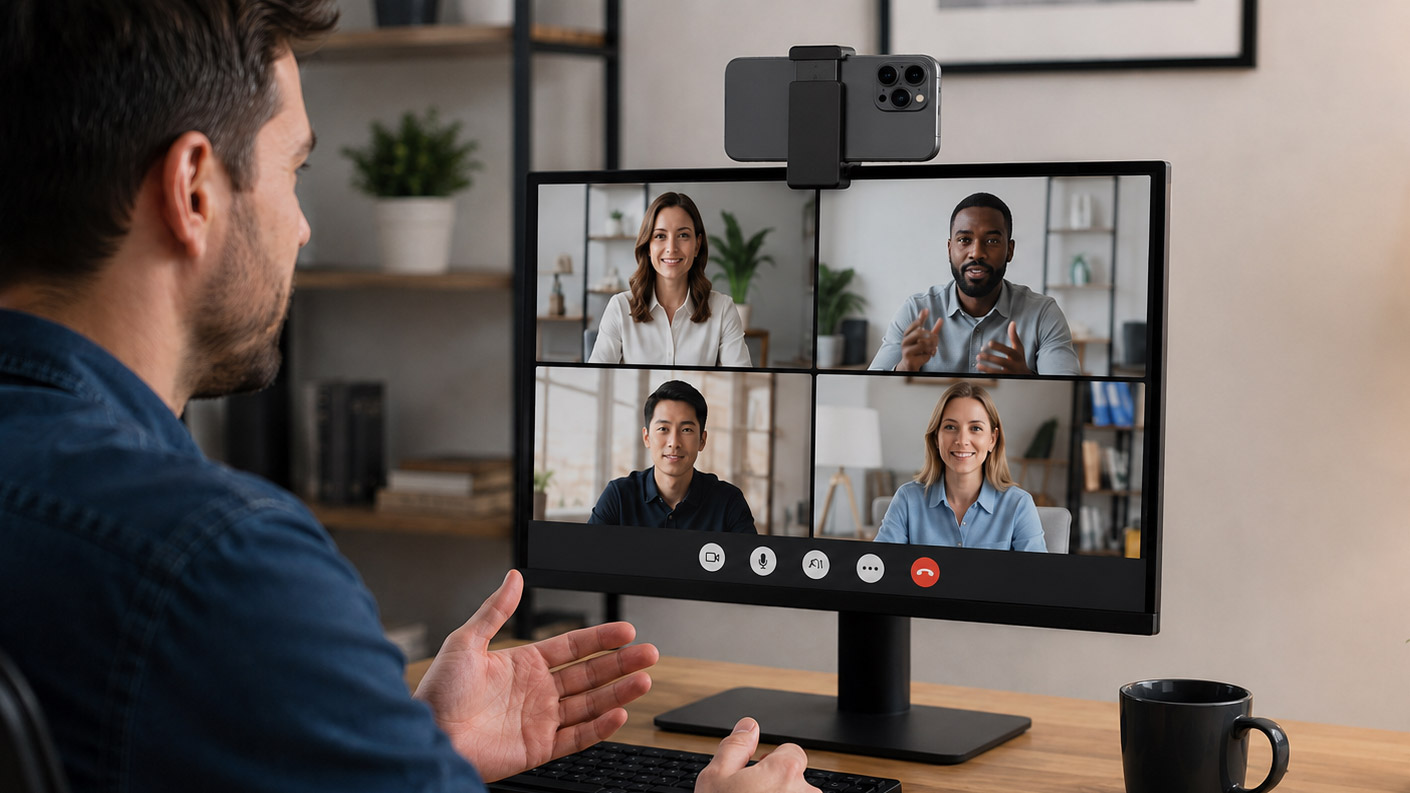
I was recently asked for some advice on how to get better quality video for some online webinars they were trying to record and decided that some of our conversation may help others with the same struggle. Good quality comes from a combination of both hardware and software, but what many don’t realize is that good video is unachievable if the PCs webcam is subpar. And most likely, it is.
What you may be surprised to know is that the best webcam in your office may be the one sitting in your pocket. Even relatively ordinary smartphones often have better cameras than those built into laptops and monitors. With the right software and a basic mount, that phone can provide a sharper, more professional picture for video meetings without requiring another hardware purchase.
This is a useful trick for MSPs to keep in their own toolbox. It can improve internal meetings, webinars and recorded content, but it can also help clients preparing for an important presentation, sales call or virtual event. When someone needs better video quality right now, turning a phone into a webcam can be considerably more helpful than sending them a shopping link.
While not difficult, there are many ways to skin a cat, and the best way use a phone camera as a webcam will depend on the combination of phone and computer involved. Below is not an exhaustive list (there are literally hundreds of solutions), but some of the ones I’ve tried that worked well.
Choose the right option for your devices
Some phone and computer combinations include built-in webcam capabilities. Others require an application installed on both devices.
iPhone and Mac: Use Continuity Camera
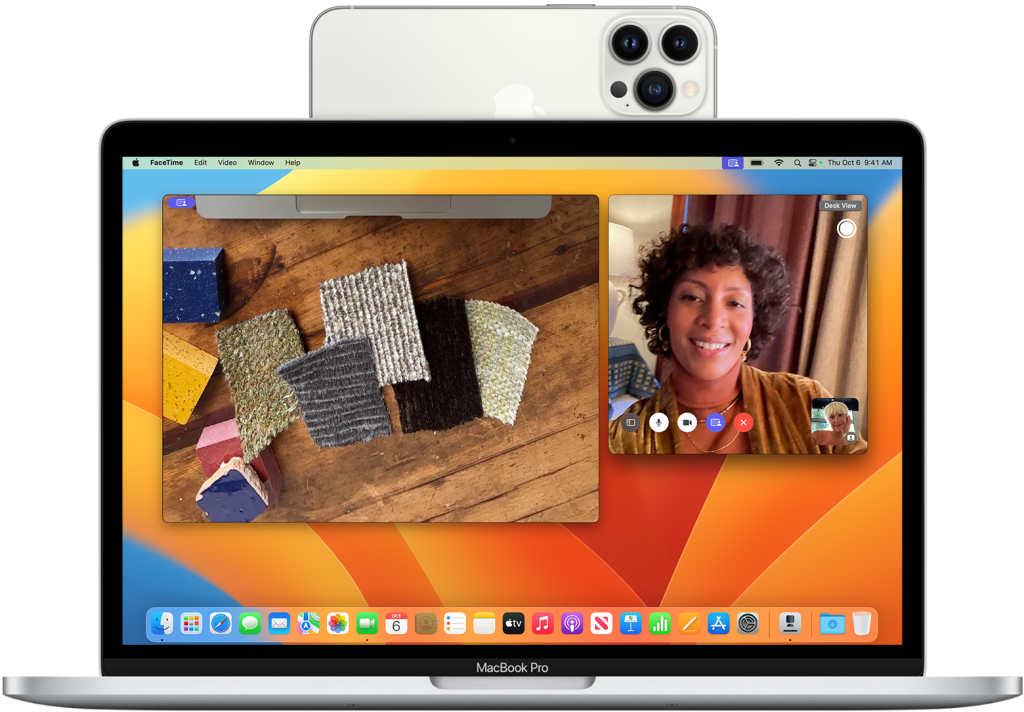
Apple’s Continuity Camera is generally the easiest option for someone using an iPhone with a Mac. It works wirelessly or over USB and makes the iPhone available as a camera in FaceTime and other compatible applications.
Using this feature requires an iPhone XR or newer running iOS 16 or later and a Mac running macOS Ventura 13 or later. Both devices must be signed in to the same Apple Account using two-factor authentication. Wi-Fi and Bluetooth must also be enabled for a wireless connection.
Once the devices are configured and near each other, users can choose the iPhone from the camera menu in their meeting or recording application. Continuity Camera also supports features such as Center Stage, Portrait mode, Studio Light and Desk View on compatible devices.
For organizations already using Macs and iPhones, this is the obvious place to start. It does not require a separate webcam utility or virtual camera driver.
There is no cost or locked features, other than that all devices must be Apple products.
Android and Windows 11: Phone Link
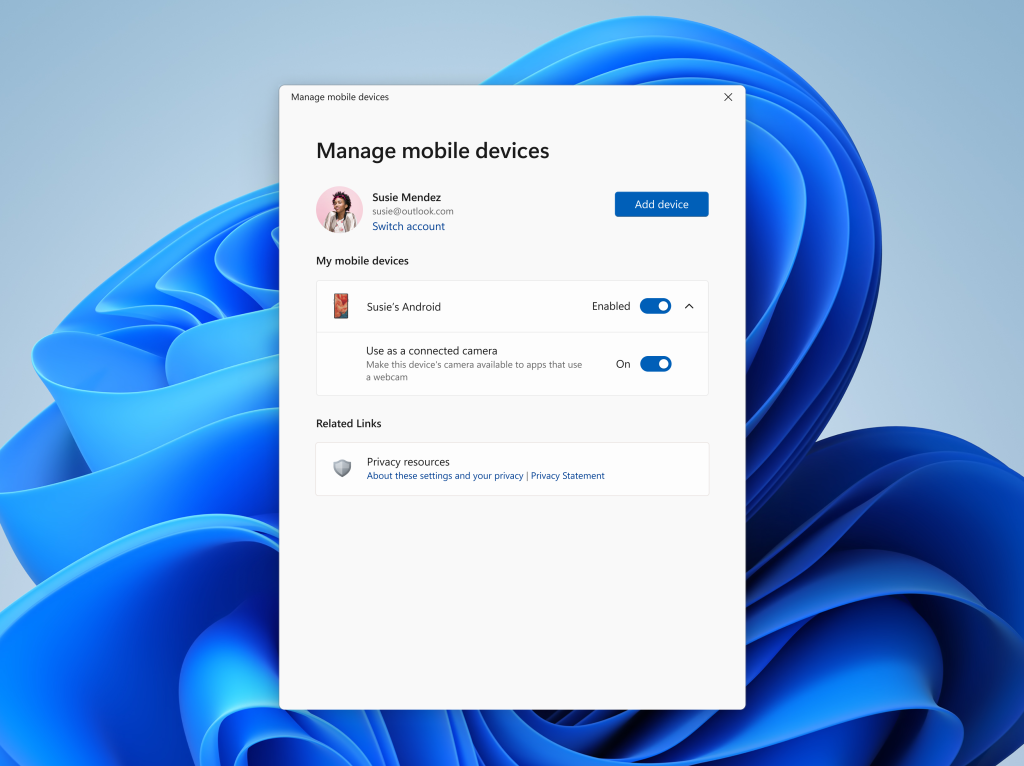
Windows 11 can use the camera on a linked Android device as a webcam. The feature requires Android 10 or later and a current version of Microsoft’s Link to Windows app. Once enabled under the Mobile devices section of Windows Settings, the phone appears as an available camera in Windows applications.
There is, however, an important business caveat.
Microsoft says Phone Link does not support work or school accounts. In practice, that means setting it up generally requires linking the devices through a personal Microsoft account. An organization may also block Phone Link, personal account sign-ins or connections between personal mobile devices and managed computers.
MSPs should therefore treat the connected camera feature as an option for permitted environments, not a universal recommendation. Check the client’s identity, acceptable-use, BYOD and endpoint management policies before helping an employee enable it.
So long as that restriction is not an issue, there are no additional costs or locked features.
Any phone with Windows or Mac: Camo
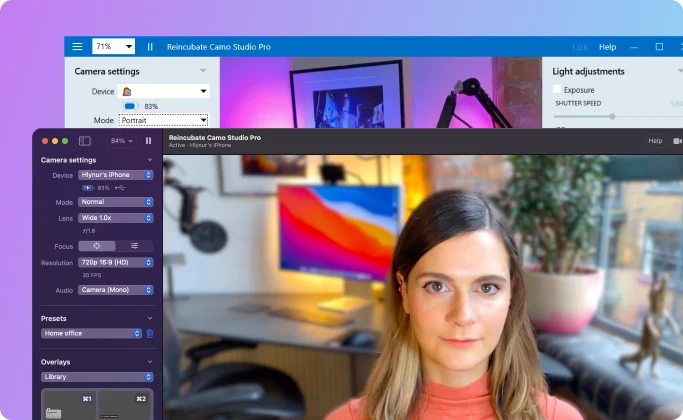
Camo provides a more platform-neutral option. Its mobile application supports iPhones and Android devices, while Camo Studio runs on Windows and macOS. Users install the companion software on both devices, connect the phone and select Camo as the camera inside Teams, Zoom or another application.
Camo can be particularly useful when the built-in choices do not match the user’s hardware, such as using an iPhone with a Windows PC or an Android phone with a Mac. It also provides controls for framing and adjusting the video that go beyond simply exposing the phone as a camera.
It’s free to use with limited video quality up to 720p, which may be a sufficient enough of an upgrade given the phone’s better camera. For $49 per year, it will work at up to 4k and 60fps.
Windows, Mac or Linux: Iriun Webcam
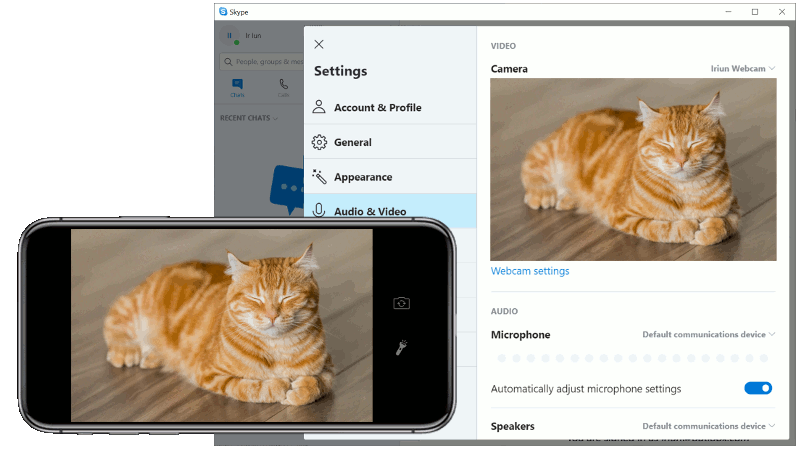
Iriun Webcam is another cross-platform alternative. It provides desktop software for Windows, macOS and Linux, along with a companion mobile application. Once connected, the phone becomes available to applications that accept a standard webcam input.
That broad operating system support makes Iriun worth considering in mixed environments, particularly when Linux users also need a straightforward phone-camera option.
Iriun is free to use with watermarked video and ads, but spring for the $5.49 lifetime pro license to get rid of those limitations and unlock some other useful features.
Windows or Linux: DroidCam
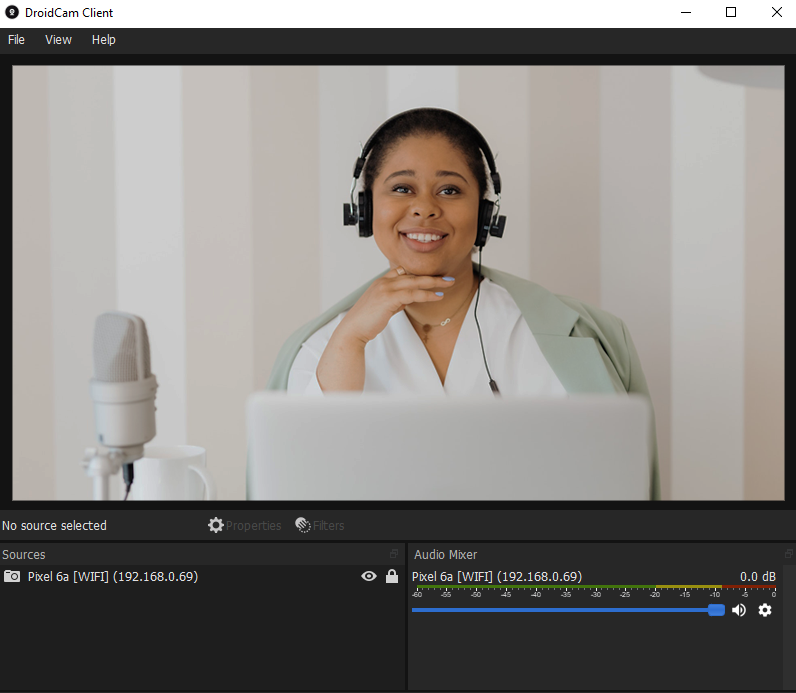
Like the other options above, DroidCam turns any phone or tablet into a webcam using a desktop client. It supports Wi-Fi and USB connections, with clients available for Windows and Linux. The camera can then be selected in meeting applications such as Teams and Zoom. If you happen to use OBS Studio, there is a plugin with direct integration.
DroidCam is free to use with some limitations, like limited video quality, watermarks, and ads. You can unlock every option, and remove both ads and limitations with a $5 payment per year, or a one-time payment of $15.
Installing all of them follow the same general process
Although the menus differ, most third-party phone webcam applications follow the same basic process:
- Install the mobile application on the phone.
- Install the corresponding client or studio software on the computer.
- Connect the devices using Wi-Fi or USB.
- Open the meeting or recording application.
- Choose the new virtual camera from its video settings.
A USB connection is usually preferable for lengthy meetings or recordings because it can keep the phone charged and avoid some of the variability of a wireless connection. Wireless operation is more convenient when the camera needs to be positioned away from the computer.
Organizations should approve the software before installation. Many of these tools install a virtual camera, driver or background service on the computer. MSPs should review the publisher, permissions, licensing, update practices and privacy policies just as they would with any other business application.
Make the phone look like a webcam
Using a better camera does not automatically produce a better picture. Positioning, lighting and stability still matter.
Mount the phone horizontally at approximately eye level. A small tripod, monitor mount or MagSafe-style mount can work well. Avoid leaning the device against a coffee mug or balancing it on a stack of spare laptops unless the presentation should include a live demonstration of gravity.
Use the rear camera when possible because it is typically the more capable camera on a phone. The downside is that users cannot see the phone’s screen, so they should finalize the framing and settings before going live.
For a longer session, connect the phone to power and enable Do Not Disturb or another focus mode. An incoming call or notification can interrupt the camera connection, depending on the phone and software.
It may also be better to continue using a computer headset or dedicated microphone for audio. A great picture paired with distant, echo-filled sound is still a poor meeting experience.
Business uses beyond ordinary meetings
A phone webcam can be useful anywhere a business needs a movable, relatively high-quality camera.
MSPs can use one to record customer tutorials, webinars, sales videos and product demonstrations. Mounted above a desk, a phone can capture hardware installations, unboxings, repair procedures or handwritten diagrams.
During remote support, a second camera angle can help someone show a technician the back of a server, the lights on a network appliance or the cabling inside a rack. It can also provide an emergency replacement when a webcam fails shortly before a virtual event.
Recruiters can improve remote interviews. Sales teams can create more polished presentations. Trainers can demonstrate physical processes, and executives can look considerably better during media interviews or customer briefings.
Admittedly, a dedicated camera remains the better choice for someone who spends most of every day on video, which should be a “real” camera or video camera when high quality is required. Then it’s always connected, does not consume a phone’s battery and does not prevent the user from using the phone normally.
For occasional meetings, recordings and demonstrations, however, the camera someone already owns may be the fastest and most economical upgrade available.
As ChannelPro’s online director and tech editor for over a decade, Matt Whitlock has spent years blending sharp tech insight with digital know-how. He brings more than 25 years’ experience working in the technology industry to his reviews, analysis, and general musings about all things gadget and gear.
Images: Dall-E, Apple, Microsoft, Camo, Iriun, DEV47APPS